

All articles
Building Products / 6 minutes read
How to Collect User Feedback with Google Forms (Step-by-Step Guide)
May 28, 2026
Collecting user feedback is one of the most effective ways to improve a product. Whether you’re building a SaaS, mobile app, or online service, feedback helps you understand what users actually need instead of relying on assumptions.
For many early-stage teams, Google Forms is one of the easiest ways to start collecting feedback.
In this guide, you’ll learn how to:
- Create a feedback form using Google Forms
- Configure your feedback questions properly
- Publish and share the form
- Analyze responses
- Understand the strengths and limitations of Google Forms for feedback management
Step 1: Create a Form Using the “Customer Feedback” Template
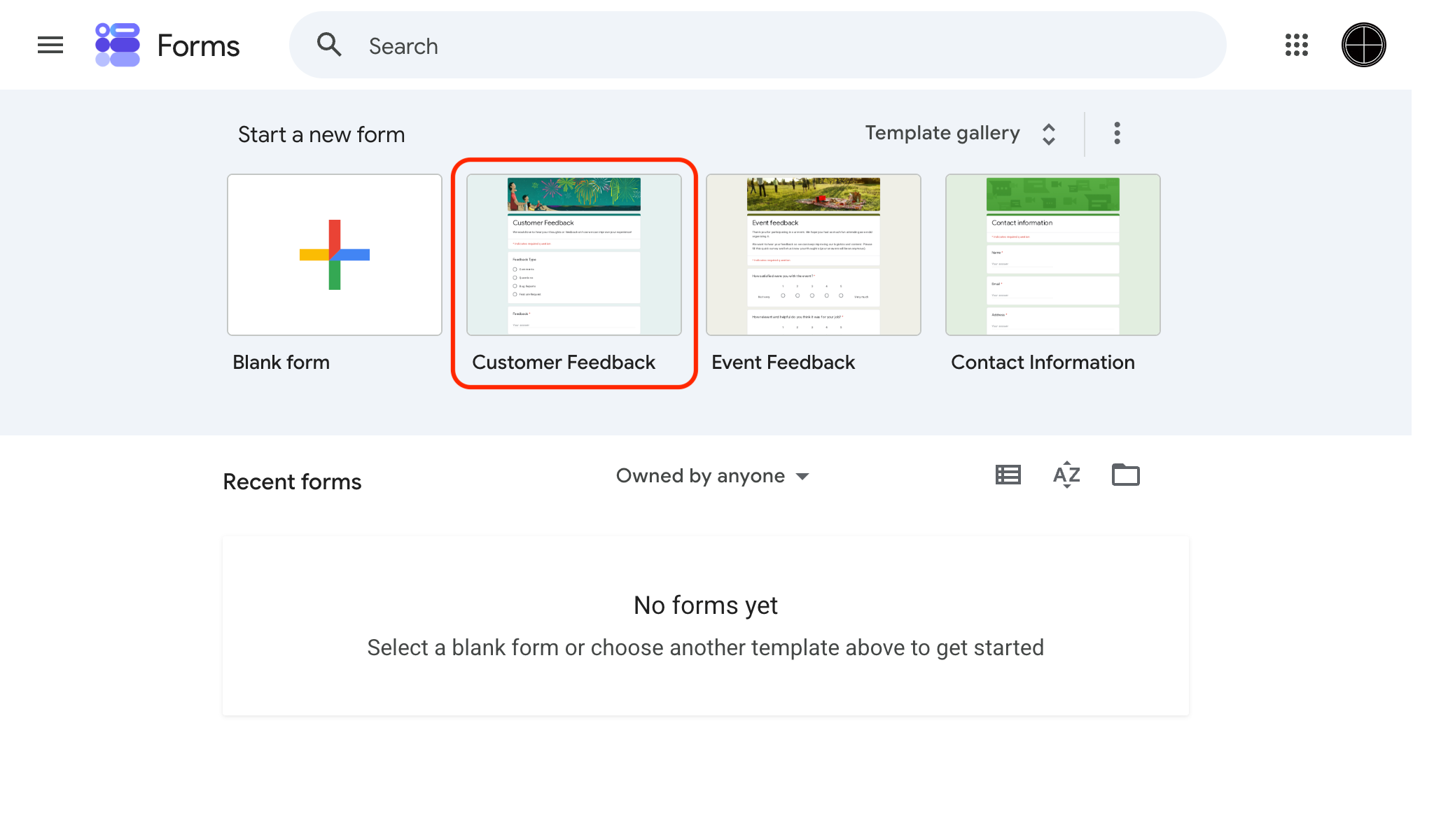
First, open Google Forms.
Choose the “Customer Feedback” template.
This template already includes several common feedback fields and helps you set up a usable form much faster.
The default template is suitable for:
- SaaS products
- Online services
- Mobile applications
- Customer support feedback
- General user satisfaction surveys
You can fully customize the template later by adding, removing, or editing fields.
Using a template is especially helpful if you’re creating your first feedback collection workflow.
Step 2: Configure the Feedback Form
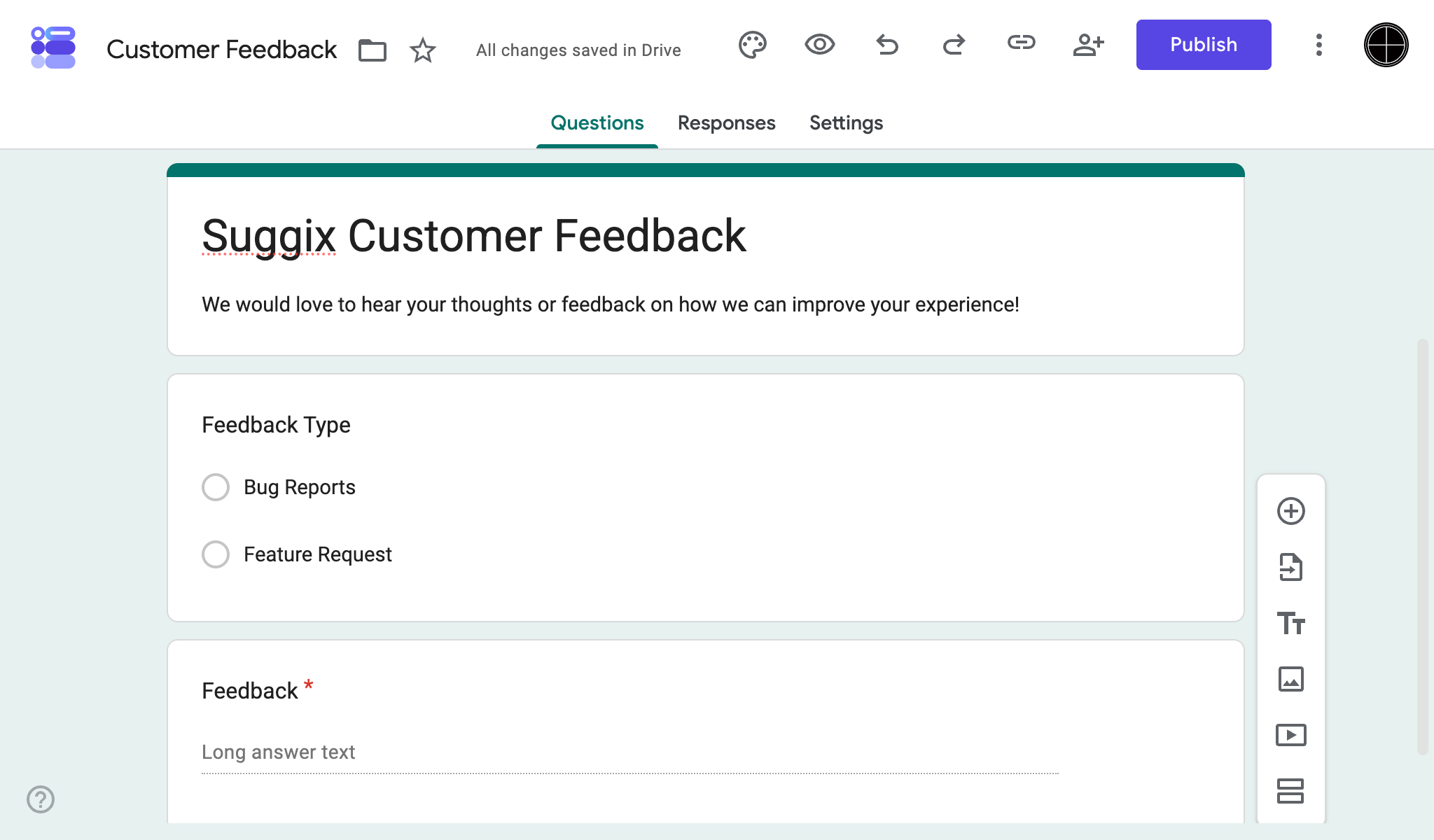
After creating the form, the next step is configuring the questions and settings.
Recommended Feedback Fields
Here are some commonly used fields for product feedback collection.
Feature Request
Use a long text field to let users explain ideas in detail.
Example:
What feature would you like us to add?
Problem or Pain Point
This helps identify friction points and usability issues.
Example:
What is the biggest problem you face while using our product?
Satisfaction Rating
Use a rating or multiple-choice field.
Example:
How satisfied are you with our product?
Priority or Importance
Useful for understanding urgency.
Example:
How important is this feature to you?
- Nice to have
- Important
- Critical
Contact Information (Optional)
Useful if you want to follow up with users later.
Google Forms Question Types You Can Use
One advantage of Google Forms is that it supports multiple question types out of the box.
The “Customer Feedback” template can be customized using these modules:
Short Answer
Best for:
- Names
- Email addresses
- Short feedback
Paragraph
Best for:
- Feature requests
- Detailed feedback
- User complaints
Multiple Choice
Best for:
- Satisfaction surveys
- Single-option questions
Checkboxes
Best for:
- Multi-select answers
- Selecting multiple issues or features
Dropdown
Useful when you want cleaner forms with predefined options.
Linear Scale
Perfect for ratings such as:
- 1–5
- 1–10
- NPS-style questions
Multiple Choice Grid
Useful for structured surveys with repeated rating categories.
File Upload
Allows users to upload:
- Screenshots
- Bug reports
- Documents
This is especially useful for collecting product bug feedback.
Step 3: Publish and Share the Form
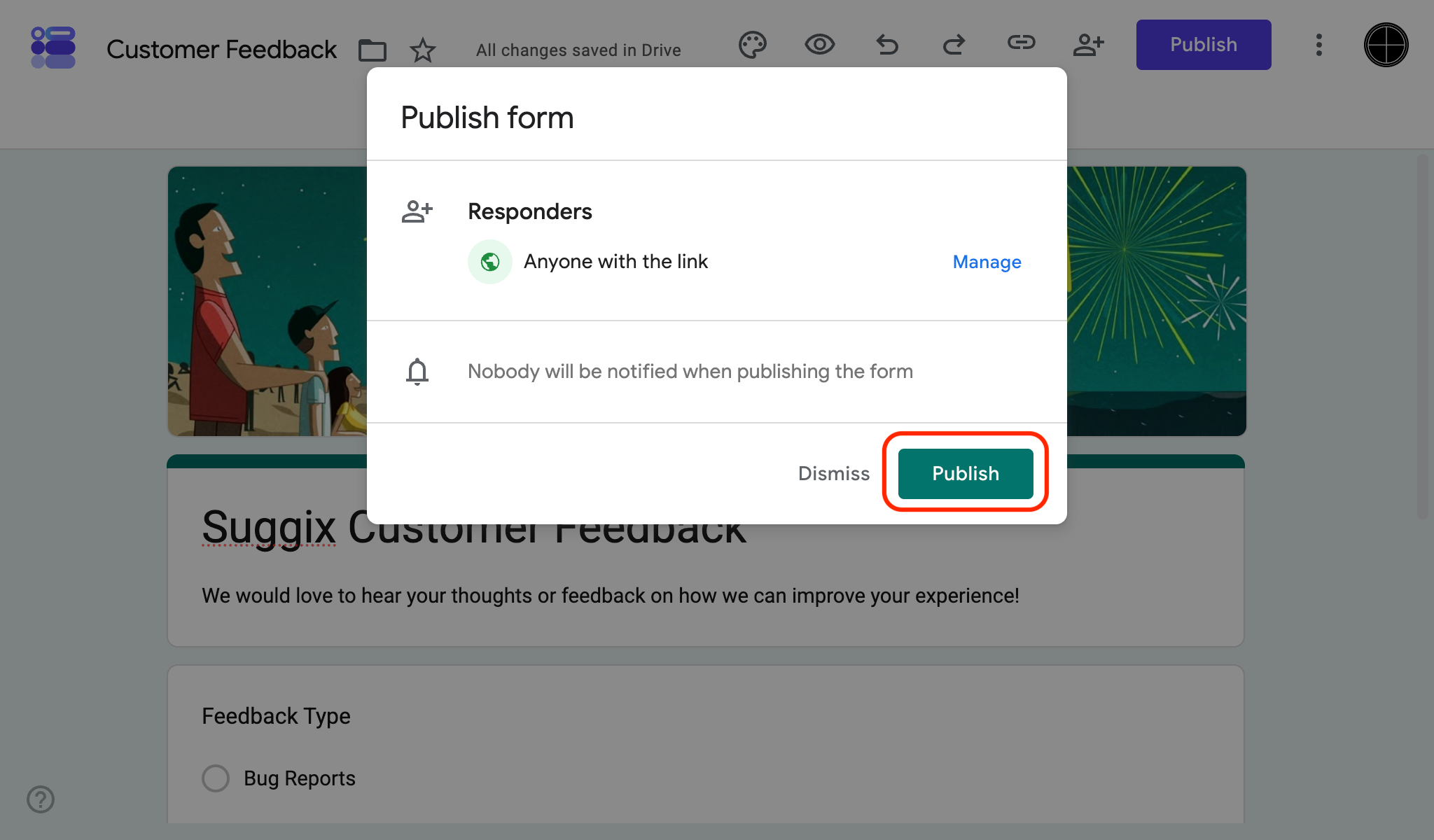
Once your form is ready, click the “Publish” button.
Google Forms supports multiple sharing methods.
Share via Link
The easiest option.
You can:
- Add the link to your website
- Share it in onboarding emails
- Send it through customer support
- Post it on social media
Embed the Form on Your Website
Google Forms provides an iframe embed code.
This works well for:
- Feedback pages
- Support portals
- Public feedback pages
Send Through Email
Useful for:
- Customer interviews
- Trial follow-ups
- Post-purchase surveys
Step 4: View and Analyze Feedback Results
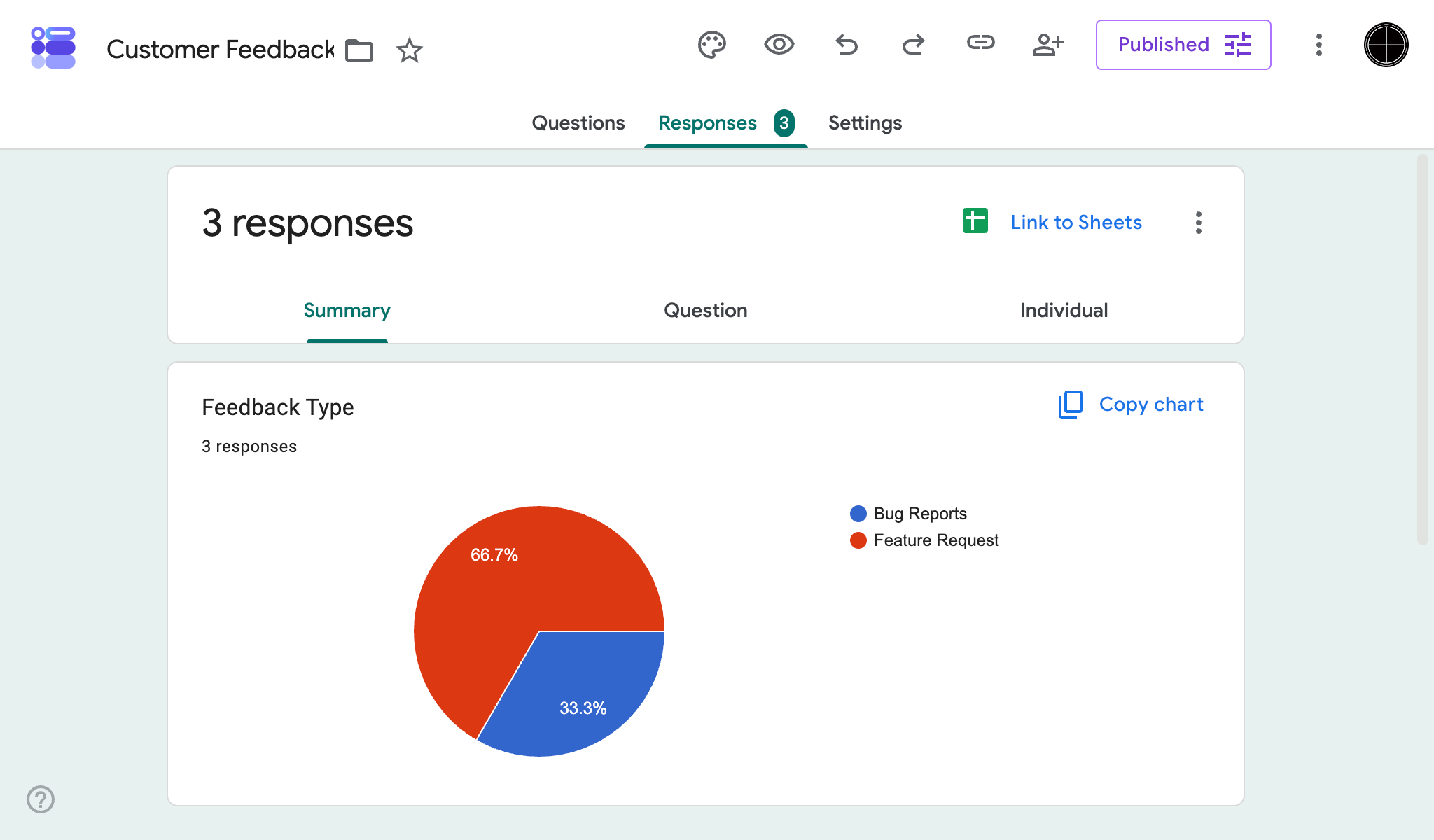
Google Forms automatically stores all responses.
You can review them directly inside Google Forms or export them to Google Sheets.
Built-in Response Dashboard
Google Forms provides:
- Response counts
- Charts
- Summary analytics
This is useful for small-scale feedback collection.
Export Responses to Google Sheets
For larger feedback datasets, Google Sheets makes analysis easier.
You can:
- Filter responses
- Group feature requests
- Track repeated problems
- Build internal reports
For many early-stage startups, this setup is sufficient initially.
FAQ: Using Google Forms for User Feedback
Is Google Forms good enough for collecting user feedback?
Yes — especially for early-stage products.
Google Forms is:
- Free
- Easy to use
- Fast to set up
For startups validating ideas or collecting initial feedback, it works very well.
However, as the amount of feedback grows, management becomes more difficult.
What are the biggest limitations of Google Forms?
The main limitation is that Google Forms is designed for collecting responses, not managing product feedback workflows.
Some common problems include:
- Duplicate feature requests
- No voting system
- No public roadmap
- No changelog publishing
- Difficult prioritization
- Feedback scattered across spreadsheets
Over time, organizing feedback manually becomes increasingly time-consuming.
Can users vote on feature requests in Google Forms?
No.
Users can only submit responses individually.
This means:
- Similar ideas are repeatedly submitted
- Teams cannot easily identify the most requested features
- Prioritization becomes harder
Can Google Forms be used as a public feedback board?
Not really.
Google Forms is primarily a submission tool.
It does not provide:
- Public discussions
- Feature voting
- Roadmap visibility
- Status tracking
Users also cannot see previously submitted ideas.
Why do teams move from Google Forms to Suggix?
As products grow, many teams switch to dedicated feedback management platforms like Suggix.
Compared to Google Forms, Suggix provides:
Public Feedback Boards
Users can submit and browse feature requests publicly.
Voting System
Customers can vote on existing ideas instead of creating duplicates.
Product Roadmaps
Teams can publicly share:
- Planned features
- In progress updates
- Released features
Changelog Publishing
Keep users informed about product updates automatically.
Better Prioritization
Product decisions become based on real user demand instead of isolated survey responses.
Does Suggix have a free plan?
Yes.
Suggix offers a free plan that supports up to 100 feedback posts, making it suitable for early-stage startups, indie hackers, and small SaaS projects.
Unlike many feedback management tools, the free plan does not limit the number of:
- Roadmap items
- Changelog posts
This allows teams to:
- Collect feedback publicly
- Share product progress
- Publish updates transparently
without immediately upgrading to a paid plan.
For small teams transitioning from Google Forms, this provides a more scalable feedback workflow while still keeping costs low.
Should you start with Google Forms or Suggix?
It depends on your stage.
Google Forms is great if:
- You are validating an idea
- You need something free
- You only collect feedback occasionally
Suggix is better if:
- You actively build based on user feedback
- You need voting and roadmaps
- You want transparent product communication
- Your feedback volume is growing
For many startups, Google Forms is the starting point — but dedicated feedback tools become much more effective as the product and user base expand.
Build what users love, together
Collect feedback, prioritize features, and keep your roadmap aligned with what actually matters.
Get Started — It’s FreeNo credit card required · 14-day free trial · Setup in minutes